Project Status
How to find, read, and update Project Status so every job stage is accurate at a glance.
What is Project Status?
Project Status is one of the most important pages in SquareCoil. It allows anyone looking at a job to immediately see what stage it's in — no need to dig through notes or ask around. Each status represents a milestone in the job's lifecycle, and keeping them updated ensures the whole team is always working from accurate information.
This page will become even more important after the upcoming SquareCoil update, when customers will also be able to view the status of their own jobs in real time.
Finding the Page
-
1Open the job in SquareCoilNavigate to the job you need to update. Every job has its own set of pages listed within it.
-
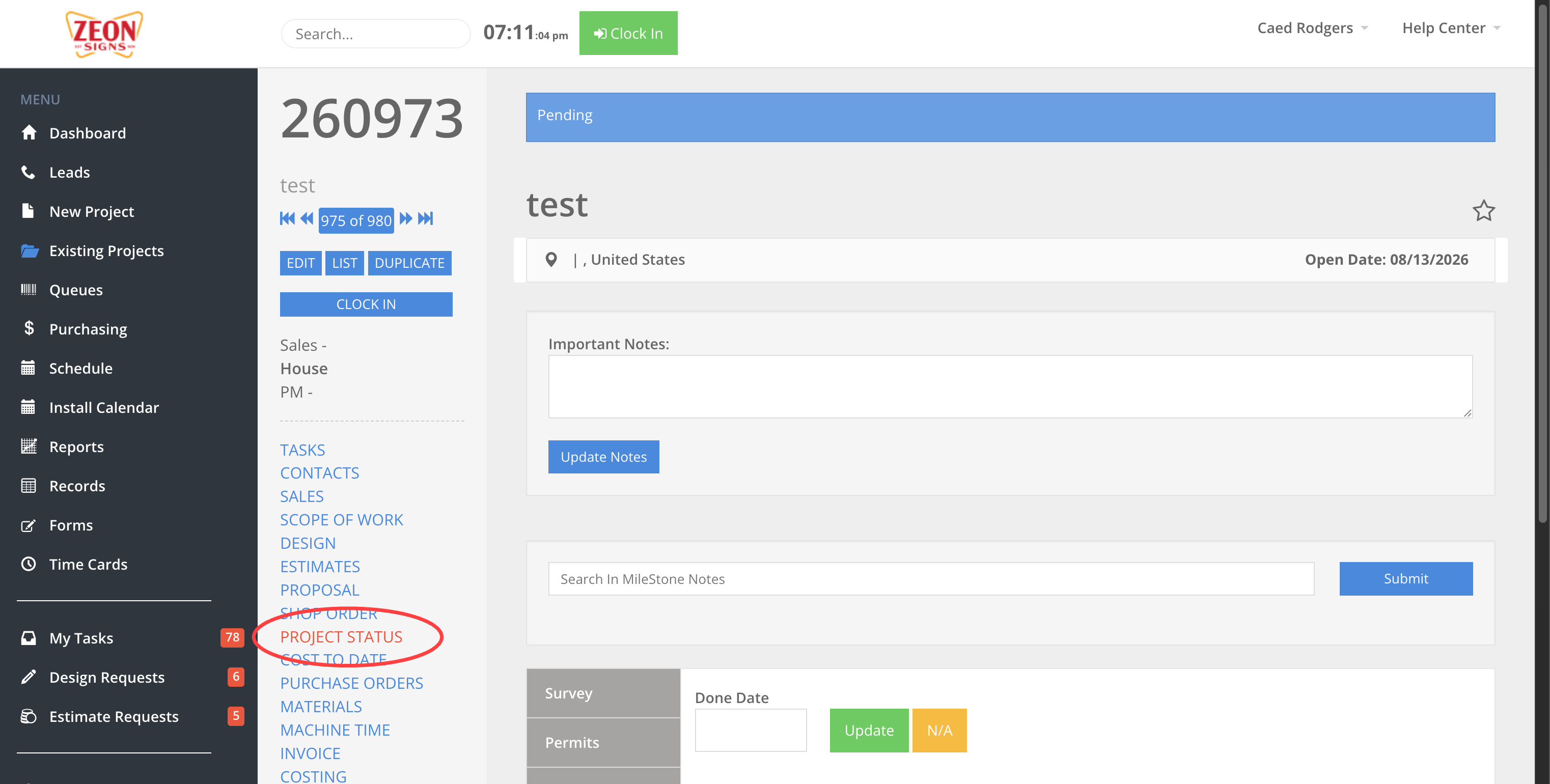
2Click "Project Status" in the job's page listWithin the job, you'll see a list of clickable links for the various pages that belong to it. Click the one labeled Project Status — this is where all the job's statuses live.
Done Dates & the Update Button
-
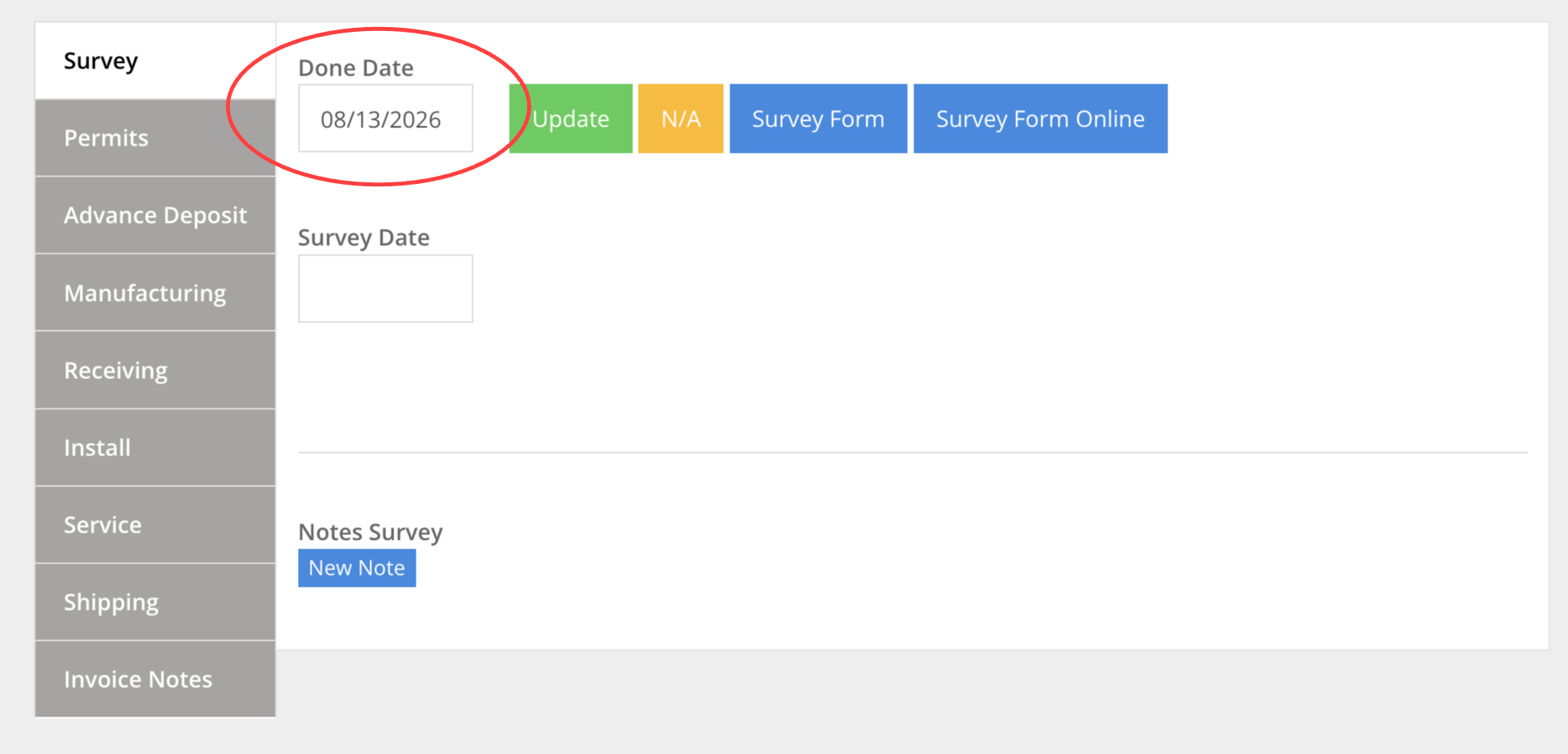
1Enter the Done Date when a stage is completedEach status has a Done Date field. When that portion of the job is finished, enter the date it was completed. This is the primary way a status gets marked as done.
-
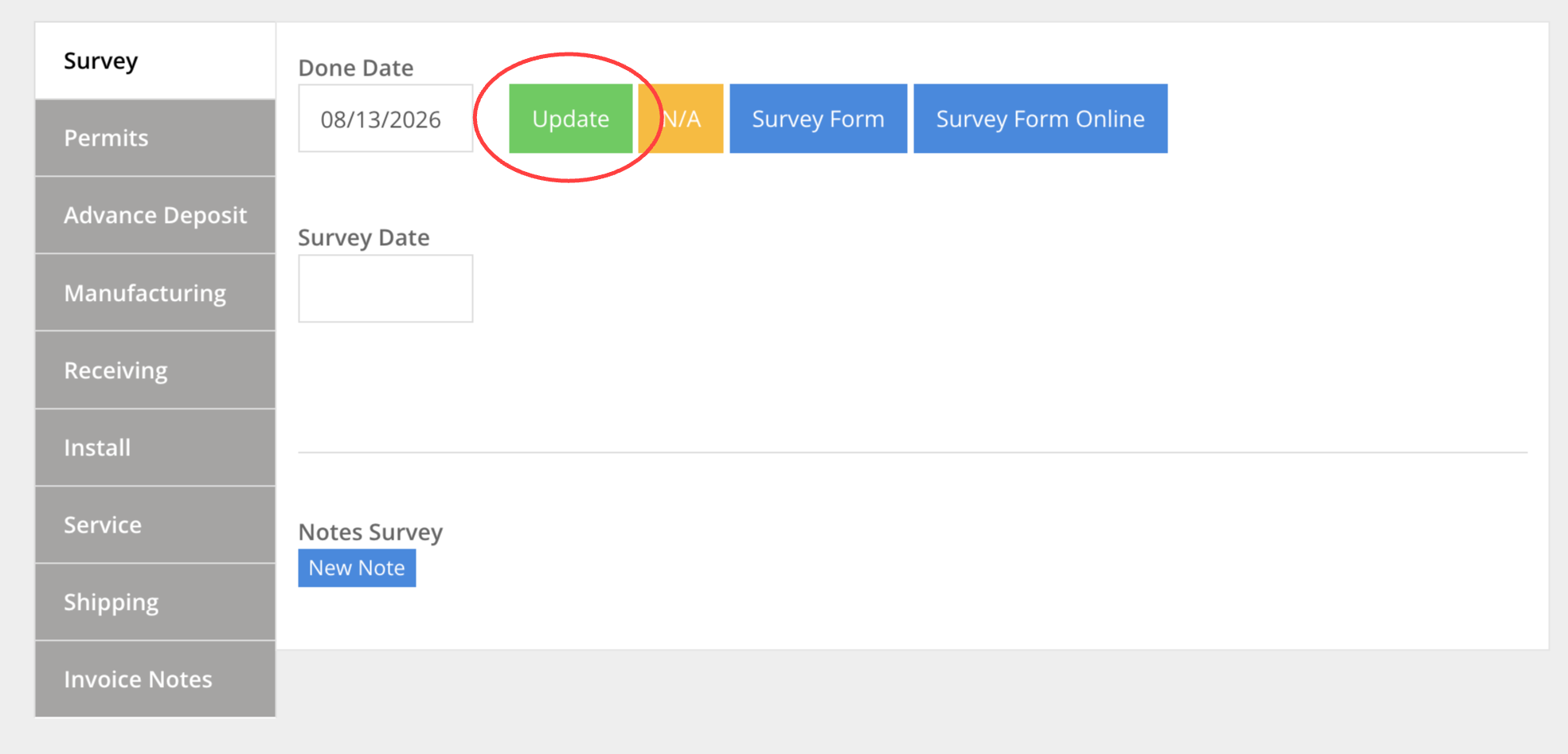
2Click the green "Update" buttonAfter entering the date, you must click the green Update button to save the change. If you skip this step, the date won't be saved and the job won't advance to the next status.
Leaving Notes
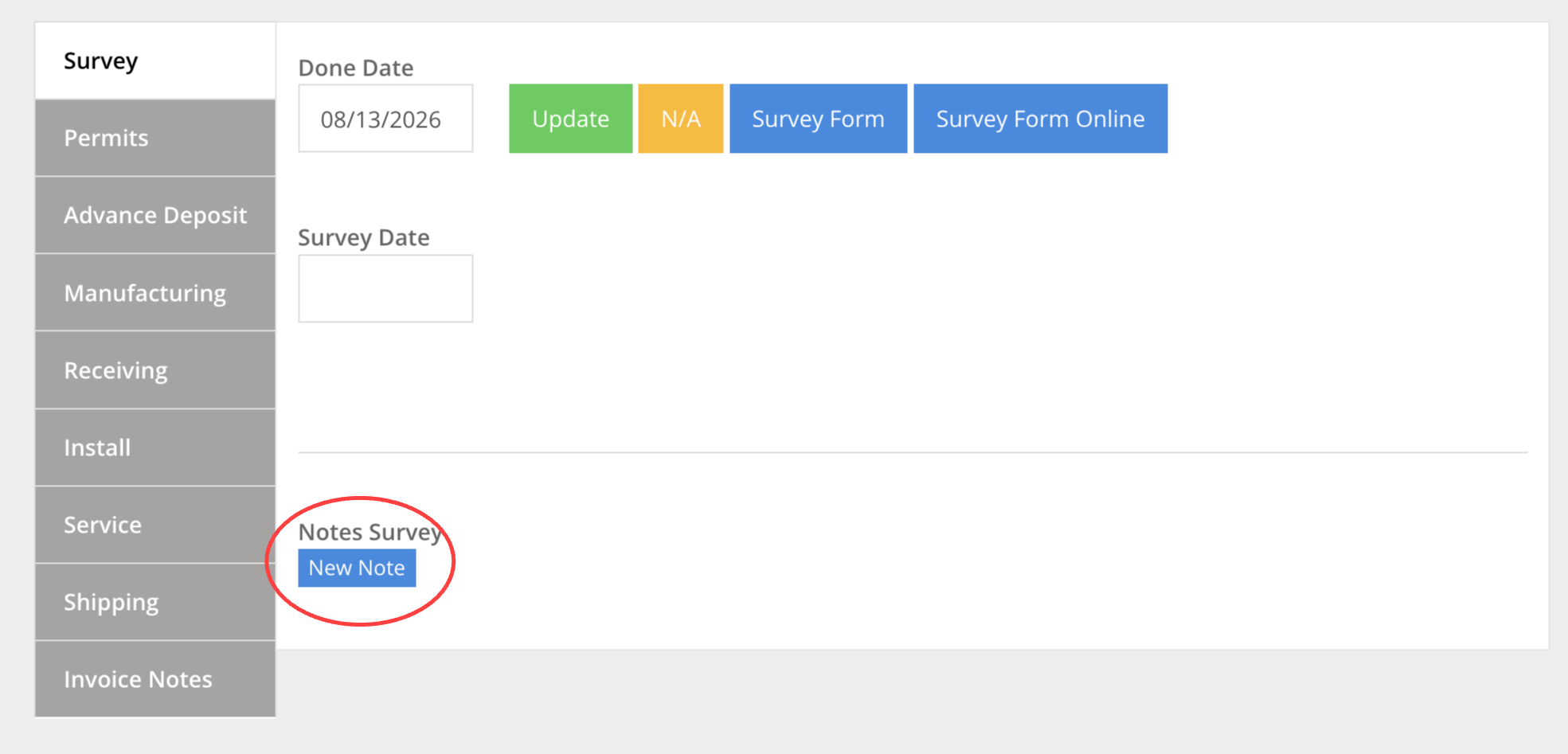
Any team member can leave a note on any individual status. Use this to communicate relevant information about that stage of the job — for example, why a date was delayed, what a surveyor found on site, or any other detail that would be helpful for someone reviewing that status later.
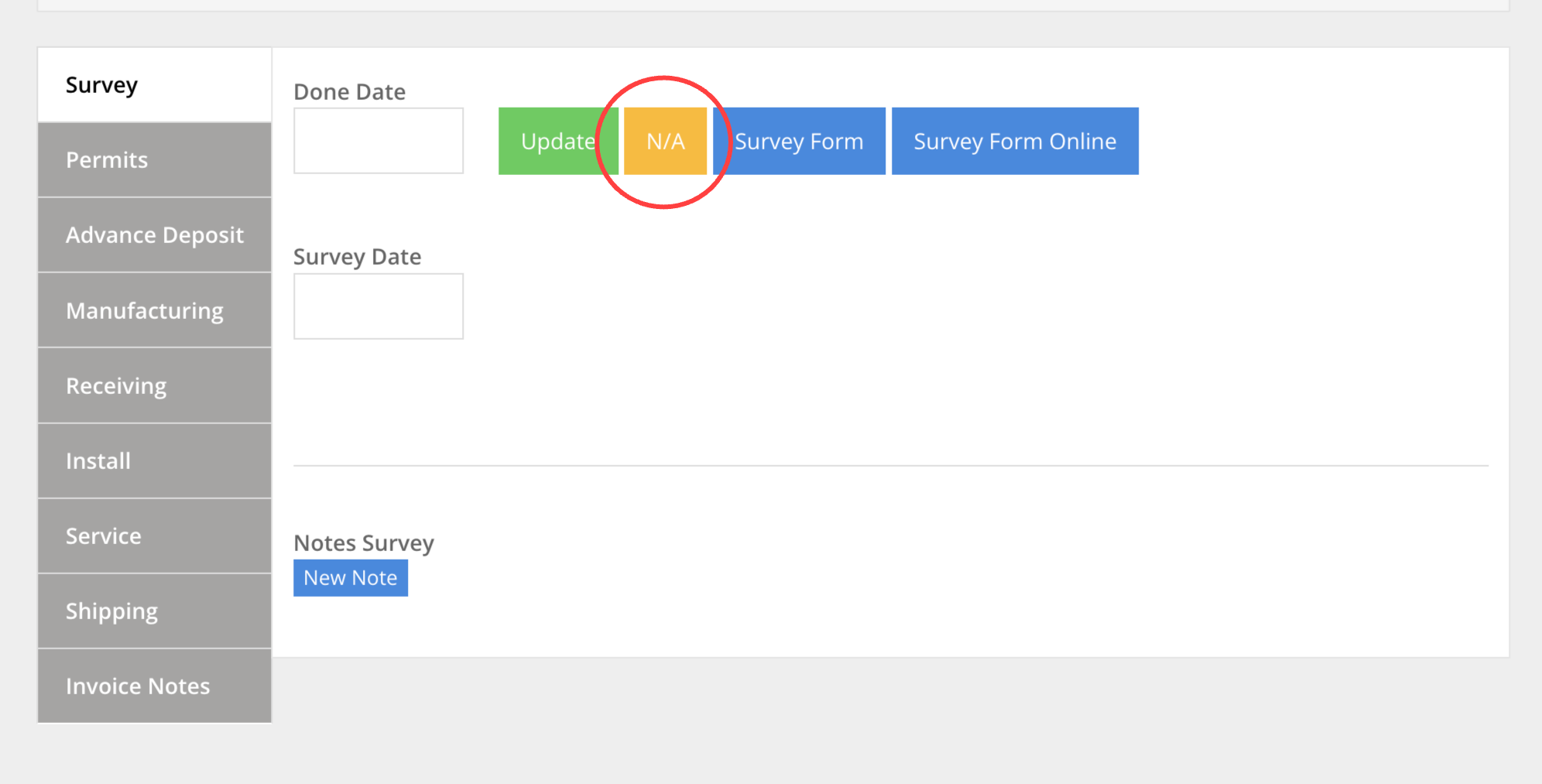
Marking a Status N/A
If a particular status does not apply to a job, it can be marked N/A at any point during the project. Use the yellow N/A button on that status to mark it out. This keeps the board clean and makes it clear that the stage was deliberately skipped — not just forgotten.
Overview
Below is a breakdown of each status on the Project Status page and what to focus on for each one.
-
SURVEYSurvey has two date fields. The first is where the project manager enters the desired survey date — when the survey is scheduled to take place. The second is the survey completed date — filled in once the survey has actually been done.
-
PERMITSEnter the Done Date when permits have been received. If the job does not require permits, mark this status N/A.
-
DEPOSITEnter the Done Date when the advanced deposit has been received.
-
MANUFACTURINGEnter the Done Date when manufacturing is complete. Ignore the Days of Manufacturing field — it does not need to be filled in.
-
RECEIVINGEnter the Done Date when the job's materials have been received.
-
INSTALLInstall is the most detailed status on the page. The primary field to focus on is the Done Date — enter it when the installation is fully complete. If the job requires multiple trips to the site, there are additional install date fields available to track each visit separately.
-
SERVICEEnter the Done Date when service work is complete. Ignore the Service Date field — it does not need to be filled in.
-
SHIPPINGEnter the Done Date when shipping is complete. If the job does not require shipping, mark this status N/A. Ignore the Shipping Date field — it does not need to be filled in.
-
INVOICEEnter the Done Date when invoice notes have been completed.